
(301) 900-6114 support@pattrac.info

support@pattrac.info

This lesson describes how to sign patient consents.

Patient Consents

Patient Consents;Patient Consents are stored in the Patient Admission record.  Consents may consist of individual consent documents, or can be several consent documents combined to create a consent package.  For example, an "Initial Intake Consent" which may contain a fee agreement, HIPPA, and other program specifc consents.  One signature can be collected for all documents contained in a consent package.
            1. Click the 'Consents' tab in the Admission screen.
            2. Click the 'New' icon to create a new Consent record.

Patient Consents are stored in the Patient Admission record.  Consents may consist of individual consent documents, or can be several consent documents combined to create a consent package.  For example, an “Initial Intake Consent” which may contain a fee agreement, HIPPA, and other program specifc consents.  One signature can be collected for all documents contained in a consent package.

1. Click the ‘Consents’ tab in the Admission screen.

2. Click the ‘New’ icon to create a new Consent record.

Create the Consent record
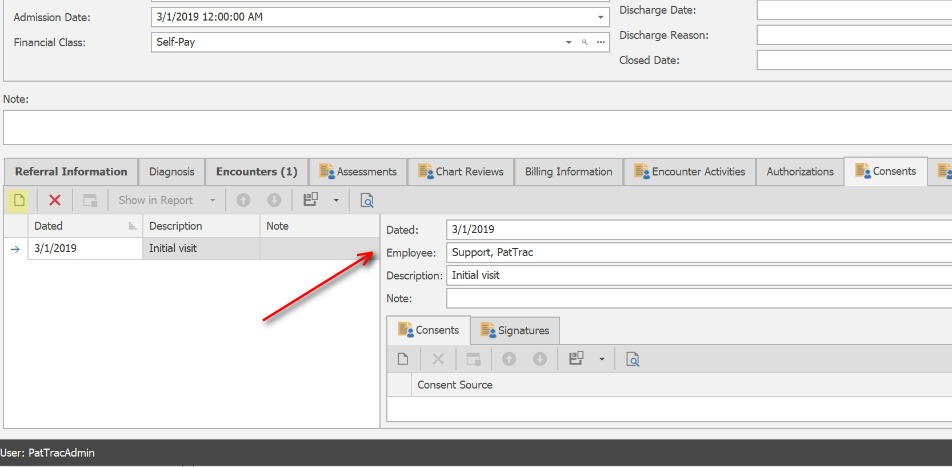
Create the Consent record;1. After clicking the 'New' icon -
            Dated - This will be populated automatically, change as needed.
            Employee - This will populate automatically.
            Description - If desired, enter a description
            Note - If desired, enter a Note.

1. After clicking the ‘New’ icon –

Dated – This will be populated automatically, change as needed.

Employee – This will populate automatically.

Description – If desired, enter a description

Note – If desired, enter a Note.

Select the Consent
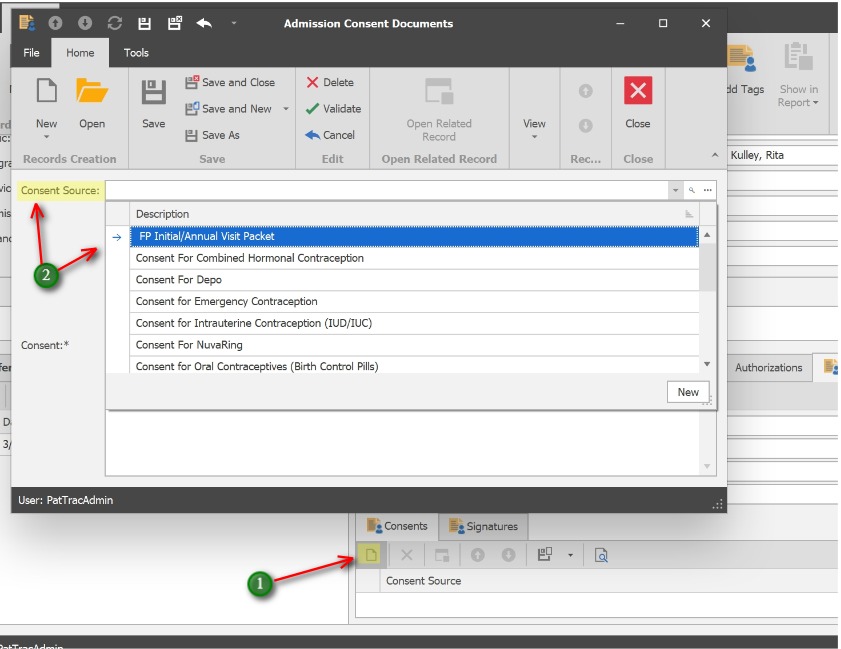
Select the Consent;1. Click the 'New' icon to add a new Consent document.
            2. Choose the Consent Source
1. Click the ‘New’ icon to add a new Consent document.

2. Choose the Consent Source

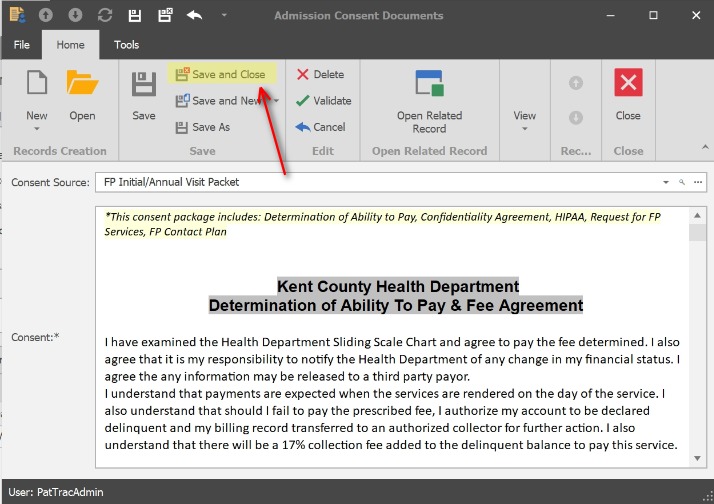
;Review the Consent, then Save & Close

Review the Consent, then Save & Close

Add Signatures to the Consent
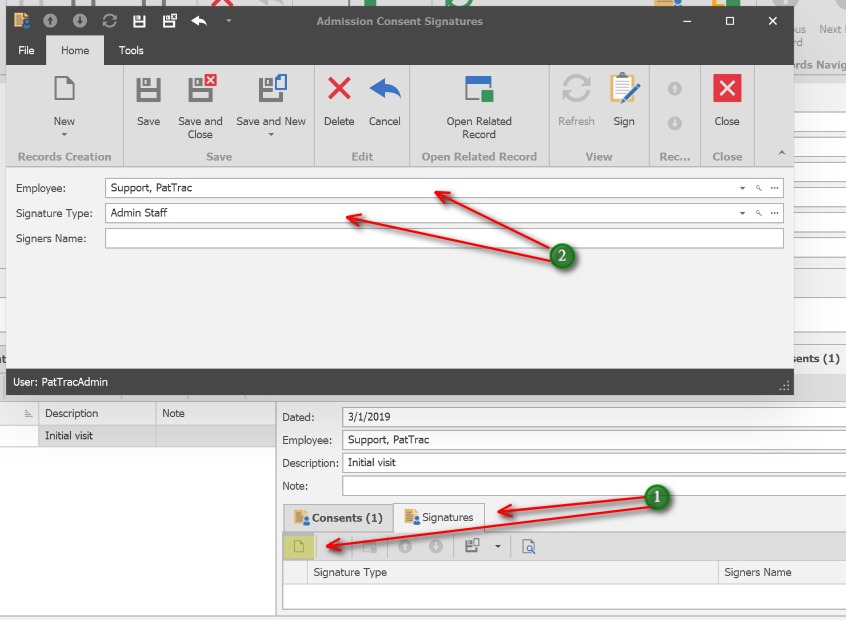
Add Signatures to the Consent;1. Click the Signatures tab and click the 'New' icon
            2. Select the Employee name and Signature Type. If the signature is a non-employee, enter the Signers Name.

1. Click the Signatures tab and click the ‘New’ icon

2. Select the Employee name and Signature Type. If the signature is a non-employee, enter the Signers Name.

Sign the Consent
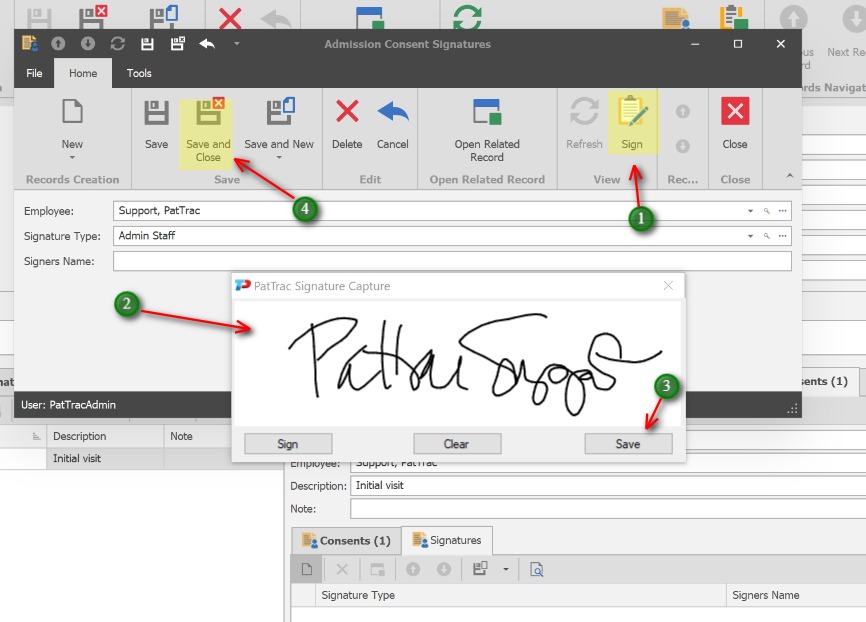
Sign the Consent;1. Click the 'Sign' button to capture the signature.
            2. Sign the signature area (this can be done with mouse, signature pad, finger)
            3. Click the Save on the signature area
            4. Click Save & Close to exit the Signature screen.

1. Click the ‘Sign’ button to capture the signature.

2. Sign the signature area (this can be done with mouse, signature pad, finger)

3. Click the Save on the signature area

4. Click Save & Close to exit the Signature screen.

Add additional signatures as needed
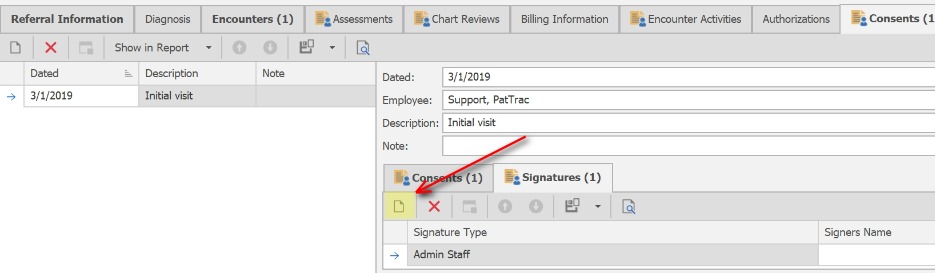
Add additional signatures as needed;Click the 'New' icon to repeat steps to add additional signatures as needed.

Click the ‘New’ icon to repeat steps to add additional signatures as needed.